
 How to Check Whether Your Android Device Is Play Protect Certified
 2026-08-14
Introduction
Android users often install sports, entertainment, and other applications directly on their smartphones, making device security an important consideration. For anyone accessing Lotus365 from an Android phone, checking whether the device is Play Protect certified can provide useful information about its compatibility and security status. Google Play Protect certification is separate from whether an individual application is safe, but it is still a helpful device-level check.
What Is Play Protect Certification?
Play Protect certification indicates that an Android device has passed Google's compatibility testing requirements. Certified devices are generally expected to meet Google's standards for compatibility with Android and Google apps.
Certification can be relevant when:
- Installing applications through Google Play
- Using Google services
- Checking device compatibility
- Troubleshooting application problems
- Reviewing the security status of an Android phone
It is worth remembering that certification does not mean every application installed on the device is automatically trustworthy.
Why Check Your Device Certification?
A device may stop being certified for several reasons. For example, modified system software, an unlocked bootloader, or certain unofficial firmware configurations can affect certification.
Checking the status can help users understand whether their smartphone is operating within Google's expected compatibility environment.
It can also be useful when an application behaves unexpectedly or when Google services display compatibility warnings.
How to Check Play Protect Certification
Google provides a simple way to check certification through the Play Store.
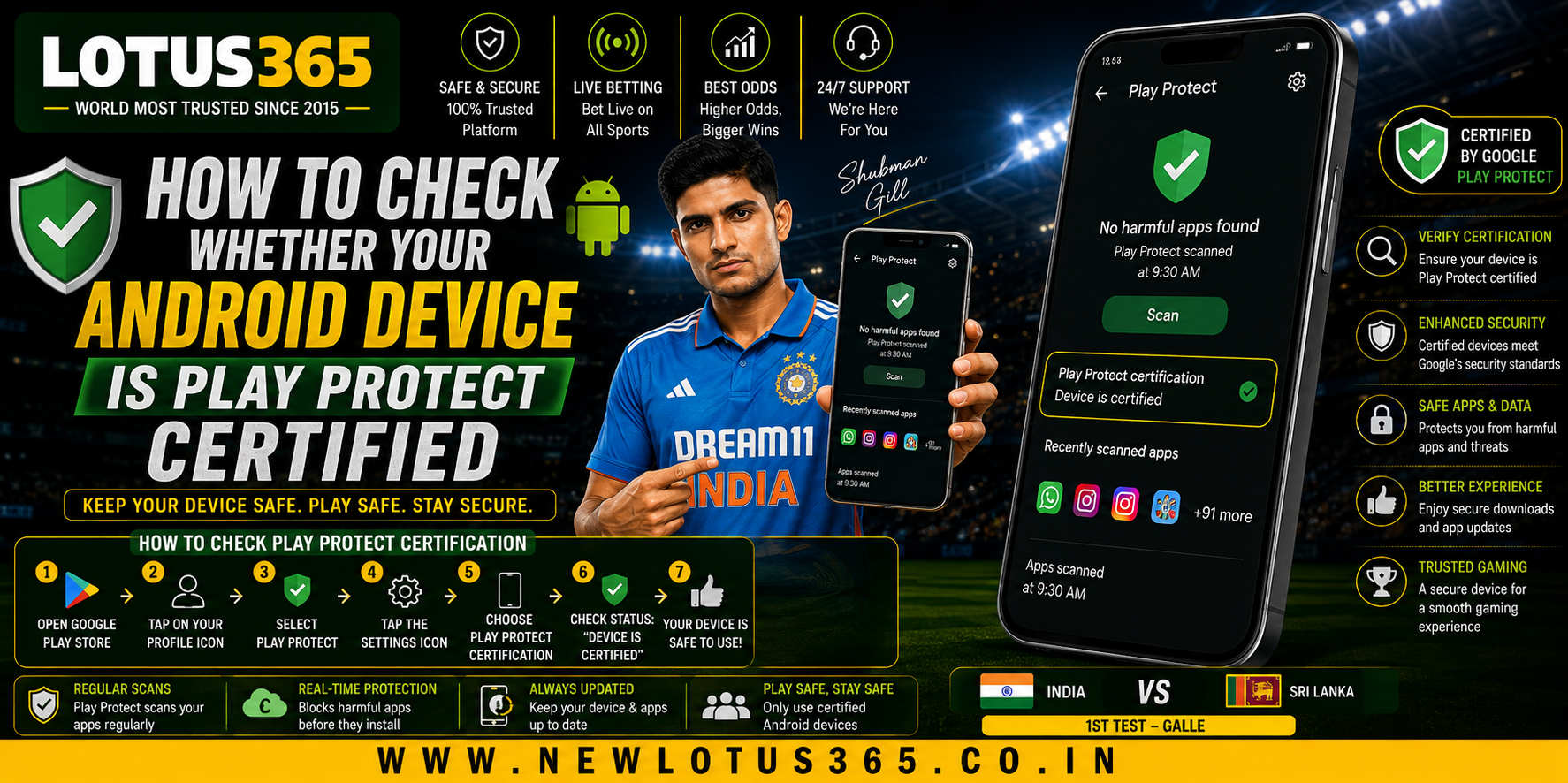
Step 1: Open Google Play Store
Launch the Google Play Store application on your Android smartphone.
Make sure you are using the genuine Play Store rather than a third-party application marketplace.
Step 2: Open Your Profile
Tap your profile picture or account icon in the upper-right corner of the Play Store.
This opens the account and settings menu.
Step 3: Select Play Protect
Choose the Play Protect option from the available menu.
This section contains information about Google's application security scanning features.
Step 4: Open Play Protect Settings
Tap the settings icon within the Play Protect section.
You will find options related to application scanning and security checks.
Step 5: Find Certification Status
Look for the Play Protect certification section.
Your device should display one of the available statuses, such as:
- Device is certified
- Device is not certified
If the device is certified, it has passed Google's compatibility checks.
What Does “Device Is Not Certified” Mean?
A non-certified device does not necessarily mean that the phone is infected with malware. Instead, it means the device has not passed Google's certification requirements.
Possible reasons can include:
- Modified Android software
- An unofficial operating system
- An unlocked bootloader
- Root access
- Unsupported device configuration
- Firmware that has not been approved for certification
Users should investigate the specific cause before making major changes to the phone.
How to Improve Device Security
Regardless of certification status, Android users should follow basic security practices.
Consider the following:
- Keep Android updated.
- Install applications from trusted sources.
- Avoid unknown APK files.
- Use a strong device lock.
- Keep Play Protect enabled.
- Remove applications you no longer use.
- Review application permissions regularly.
These steps can reduce common security risks.
Check Apps Before Installing Them
Play Protect certification applies to the device, while application security is a separate consideration. Users should therefore review individual applications before installation.
The Lotus365 app, where officially available, should only be obtained from a legitimate and trusted source. Avoid downloading APK files from unknown websites or links sent through unsolicited messages.
Before installing an application, consider its source, requested permissions, developer information, and available security information.
What If Play Protect Says Your Device Is Not Certified?
Do not immediately install random tools that claim to fix certification. Such applications may create additional security concerns.
Instead:
- Check whether your Android software is official.
- Install available system updates.
- Remove unauthorized modifications if appropriate.
- Review Google's official troubleshooting information.
- Contact the device manufacturer when necessary.
If the phone has been modified intentionally, restoring official software may be required, although users should back up important information before making significant system changes.
Certification and Mobile Account Safety
Device certification is only one part of safe mobile usage. Users should also protect passwords, avoid suspicious links, and never share verification codes with unknown people.
Your Lotus365 ID should be treated as private account information. If account assistance is required, use official support channels rather than third parties offering unofficial solutions.
Quick Certification Checklist
Before accessing important online accounts, check:
- Play Protect is enabled.
- Device certification status is available.
- Android is updated.
- Applications come from trusted sources.
- Screen lock is enabled.
- Unknown APK files are avoided.
- Account passwords remain private.
Conclusion
Checking Play Protect certification is a simple way to understand whether an Android device meets Google's compatibility requirements. The status can be found directly through the Google Play Store's Play Protect settings, without needing an additional application.
However, certification should not be treated as a complete security guarantee. Keeping Android updated, using trusted application sources, protecting account credentials, and avoiding suspicious downloads remain equally important.
For anyone using an Android phone for sports, entertainment, or other online services, combining device checks with sensible security habits can provide a safer overall experience.
FAQs
Where can I check Play Protect certification?
Open Google Play Store, tap your profile icon, select Play Protect, open its settings, and look for the Play Protect certification section.
What does a certified Android device mean?
It means the device has passed Google's compatibility testing requirements for Android and Google services.
Does non-certification mean my phone has a virus?
No. A non-certified status does not automatically indicate malware. It means the device has not met Google's certification requirements.
Can an unofficial APK make my device unsafe?
Yes. APK files from unknown or untrusted sources can potentially contain harmful software, so users should obtain applications from legitimate sources whenever possible.
Does Play Protect certification guarantee application safety?
No. Certification relates to the device. Users should still evaluate individual applications and download them from trusted sources.