
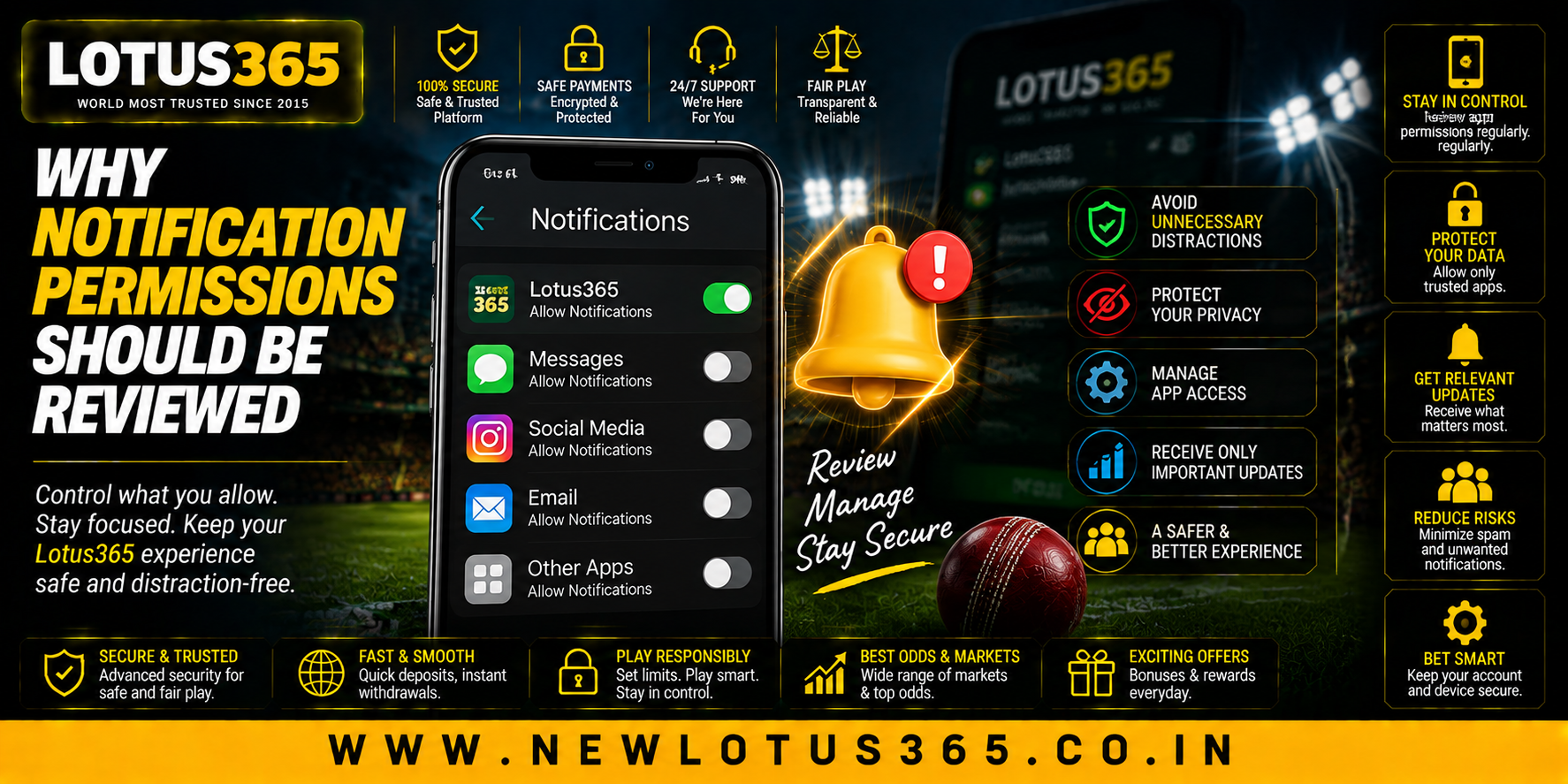
 Why Notification Permissions Should Be Reviewed
 2026-09-08
Introduction
Notifications help users stay informed about messages, updates, reminders, and account activity. However, allowing every application to send alerts can quickly create unnecessary interruptions and make important notifications harder to notice. Reviewing notification permissions regularly is therefore a simple part of maintaining a cleaner and more controlled mobile experience.
For users accessing services such as Lotus365 on mobile devices, checking which applications can send notifications can also help keep attention focused on relevant alerts. Both Android and iPhone provide settings that allow users to control notifications for individual applications.
What Are Notification Permissions?
Notification permissions determine whether an application can send alerts to your device. Depending on the operating system and settings, notifications may appear on the lock screen, notification panel, home screen, or as banners.
These alerts can include:
- New messages
- Account updates
- Security notifications
- Promotional announcements
- Reminders
- Service-related information
Not every application needs to notify you frequently, so reviewing these settings can make your device easier to manage.
Why Regular Reviews Matter
Notification preferences can change over time. You may install several new applications, stop using older ones, or discover that some services send more alerts than expected.
A regular review helps you:
- Reduce unnecessary interruptions
- Keep important alerts easier to identify
- Avoid excessive promotional notifications
- Maintain better control over your device
- Adjust settings after installing new applications
Android allows users to manage notifications for individual applications and, on supported devices, review notification history.
Check Notifications After Installing New Apps
New applications can introduce additional notification categories or requests. Instead of automatically accepting every option, consider whether the alerts are genuinely useful.
Ask yourself:
- Does this application need to notify me immediately?
- Are the notifications mostly informational or promotional?
- Would occasional alerts be enough?
- Could important notifications from other apps become easier to miss?
This simple review can prevent notification overload.
Review Lock Screen Notifications
Notification visibility is also worth checking. Some alerts may appear on a lock screen, which can expose information before the device is unlocked.
Review which applications are allowed to display notifications on the lock screen and consider whether sensitive information should be visible there.
On iPhone, users can choose how notifications from individual apps appear, including on the Lock Screen, Notification Centre, or as banners.
Check Permissions When You Stop Using an App
Unused applications should not automatically remain part of your daily notification environment. If an app is no longer useful, you can turn off its notifications or remove the application altogether.
Android also provides options related to unused applications and permissions, allowing users to review access and adjust settings when necessary.
Keeping older apps under review can make your device more organised and reduce unnecessary background activity.
Separate Important and Promotional Alerts
Not every notification has the same value. Security alerts, account messages, and important service updates may deserve more attention than promotional offers or frequent marketing reminders.
Creating a distinction between useful and unnecessary alerts helps users notice genuinely important information without constantly checking their phones.
Review Privacy Alongside Notifications
Notification settings are only one part of mobile privacy. Users should also periodically review other application permissions, such as access to contacts, location, camera, microphone, and photos.
Android provides a Permission Manager for reviewing permissions by category, while iPhone users can review privacy access through Settings > Privacy & Security.
For users managing a Lotus365 ID on mobile, keeping notification and privacy settings organised can contribute to a more controlled account-access routine.
A Simple Notification Review Routine
A quick review does not need to take long. Consider checking notification settings:
- After installing a new application
- After major phone or app updates
- When notifications become excessive
- When you stop using an application
- When an alert contains information you do not want displayed publicly
This routine can help keep your device more organised without disabling useful alerts.
Conclusion
Notification permissions deserve occasional attention because mobile usage changes constantly. Applications are added, removed, updated, and used differently over time. Reviewing notification settings helps users reduce distractions, protect notification visibility, and make important alerts easier to recognise.
A few minutes spent checking notification preferences can therefore contribute to a cleaner and more manageable mobile experience.
FAQs
1. What are notification permissions?
Notification permissions control whether an application can send alerts to your mobile device.
2. Why should notification settings be reviewed?
Regular reviews can reduce unnecessary alerts and help important notifications remain easier to identify.
3. Can notification permissions be changed later?
Yes. Android and iPhone both allow users to change notification settings after initially configuring an application.
4. Should unused apps still have notifications enabled?
Usually, there is little reason to receive notifications from applications you rarely use. You can review or disable their alerts.
5. Can notifications appear on a locked phone?
Yes. Depending on device settings, notifications can appear on the lock screen. Users can adjust how notifications are displayed.
6. Are notifications the only permissions worth reviewing?
No. It is also useful to review permissions involving location, camera, microphone, contacts, photos, and other sensitive device features.